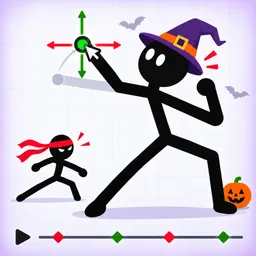
How to start: 6 quick steps
- Press Create to start a new cartoon and follow the short tutorial.
- Open Add and pick a character, animal, prop or effect.
- Select a character and drag its joint dots to pose it.
- Press + Frame, move the character a little, and repeat. A faint ghost shows the previous pose.
- Set each frame's length and motion style, or apply a ready-made move such as Bounce.
- Press Play to watch it, then Publish with a title, description and hashtags.
On this page · 9 sections
Tap a step to tick it off. Your ticks stay in this browser.
Your progress 0 / 8
Step 1 · 0:16
Do the tutorial
On screen: Last one! DRAG his foot back down to tap it!
- The first cartoon is a tutorial. It shows a ninja stickman with highlighted joint dots and a hint box that says to drag a foot back down onto the target.
- A Skip button sits next to the hint box if you already know how it works.
Step 2 · 0:49
See what others made
On screen: Browse and For You
- The feed has For You and Browse tabs, hashtags such as #fight, #funny and #hero across the top, and a Create button.
- Beside a playing cartoon you can see like, comment and remix buttons. One cartoon shows 1.7K likes.
Step 3 · 1:20
Publish your cartoon
On screen: Publish your cartoon
- The Publish window has title and description fields, hashtag suggestions, remix and duet switches and a Publish button.
- After you press it a box says “Publishing your cartoon... Saving it for everyone, please wait!”.
Step 4 · 1:53
Add characters, animals and props
On screen: Add menu
- The Add menu has tabs for characters, animals, props, effects and more. The free characters in the first row are Stickman, Stick Girl, Ninja, Hero and Robot.
- Rows below are marked VIP, with Knight, Wizard, Pirate, Cowboy and Samurai.
Step 5 · 2:58
Select and pose a character
On screen: Joint dots and options panel
- Selecting a character shows its joint dots and an options panel on the right. The panel has Motion, Look and Arrange sections with buttons such as Flip, To Front, To Back, Duplicate and Delete.
- Drag a joint dot to move that limb.
Step 6 · 4:03
Set the frame length and motion
On screen: Frame settings
- Each frame has its own duration (2.00 seconds in the footage) and a motion style such as Smooth or Linear, with a live preview box.
Step 7 · 4:35
Try ready-made moves
On screen: Moves window
- The Moves window lists ready-made motions such as Hop Forward, Bounce, Spin and Shake, and shows a preview of Bounce before you apply it.
Step 8 · 6:13
Use the ghost to line up the next pose
On screen: Onion ghost and ten-frame timeline
- While you position the next frame, a faint ghost of the previous pose is shown. The timeline at the bottom shows ten frames in this cartoon.
What the editor shows
| Where | What it shows |
|---|---|
| Left toolbar | Add, Draw, Scene, Audio, Fit and Shop buttons, plus For You |
| Top bar | Home, the cartoon's name, Publish, a Saved indicator, undo and redo, Onion, settings, Camera and Play |
| Bottom bar | Previous and next frame arrows, the frame length, + Frame, Delete and Edit, above a numbered frame timeline |
| Audio window | Music and Effects tabs. It says how many sounds are on this frame (up to 5) and lists effects in groups such as Explosions, Hits, Whooshes, Cartoon, Funny, Magic, Sci-Fi, Battle, Nature, Animals and Vehicles |
Posing and playback
| Key | Does |
|---|---|
| Drag a joint dot | Poses a limb (from the tutorial hint) |
| Hold | A hint says: tap a hand, a joint or a body (the yellow and white dots) to hold an object, such as a gun in a character's hand |
| Play | Plays the cartoon with Pause, Restart and Loop buttons, a time bar and a Close button |
| Camera | Draws a camera box on the scene to set what the cartoon shows |
Beginner tips
- Keep each move small between frames. The game description says to add a new frame and move the characters a little.
- Check the faint ghost of the previous pose before you move the next one.
- Use the Moves window for quick motions and the frame settings to slow things down.
- Cartoons are saved automatically, so the Saved indicator in the top bar is normal.
- No codes confirmed. See the codes page, and don't use codes from Make Viral Candy.
More Make a Cartoon pages
- Make a Cartoon Controls: Scale, Rotate, Flip and Undo
- How to Make a Cartoon in Make a Cartoon: Frames, Poses and Camera
- Make a Cartoon: How to Get Views and the 100, 1K, 10K and 100K View Badges
Watch it
The steps above come from one 7-minute guide, “Make a Cartoon Guide!” by NoobBlox (uploaded Nov 3, 2026). Each “Watch” button jumps to that moment. We only list what the screen and the Roblox description show.
FAQ
How do you make a cartoon in Make a Cartoon?
Start a new cartoon, add characters from the Add menu, pose them by dragging their joints, add a frame and move them a little, then press Play. Press Publish when you're happy.
How do you add characters?
Open the Add menu. The free characters are Stickman, Stick Girl, Ninja, Hero and Robot, and several others are marked VIP.
How do you get a cartoon to the Top?
Publish it. The game description says players like the best cartoons and the most liked ones reach the Top.
Can you add sound?
Yes. The Audio window has Music and Effects, and a frame can hold up to 5 sounds, according to the window text.
How many players can join a server?
Up to 30.
Sources
- Roblox game page for Make a Cartoon: description (read Nov 11, 2026; the page's API was unavailable on Nov 15, 2026)
- Player video “Make a Cartoon Guide!” by NoobBlox (Nov 3, 2026), read frame by frame