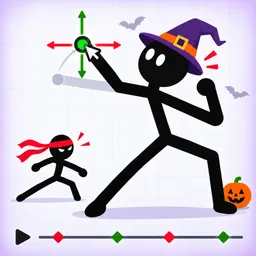
Short version: In Make a Cartoon, hold S and drag to scale a character or prop, hold R and drag to rotate it, and press Ctrl+Z to undo. You can also flip a character, add a frame, set the camera, and add background music and effects from the editor.
Controls at a glance
| Scale | Hold S, or use the handles |
| Rotate | Hold R, or use the handles |
| Undo | Ctrl+Z |
| Flip | Flip button on the selected character |
| Add things | Add: players, animals, props |
| Scenes | City, Beach, Space, Night |
Editor keys
The guide video shows S to scale and R to rotate while you drag, and says the same can be done by clicking and holding the on-screen handles. Ctrl+Z undoes a mistake. We haven't seen a key list in the game, so these are the ones shown on screen.
Buttons you will use
- Add: place a hero, a dog, a robot or a prop such as a laser gun.
- Scene: switch the background, which changes the feel of the cartoon.
- Audio: background music and effects.
- Camera: scale the camera up in one frame and zoom out in the next for a zoom effect.
- Add frame: copy the scene to a new frame, then move the characters a little.
Tips
- Use Ctrl+Z straight away if a prop jumps; the guide video did the same when a laser gun wouldn't attach to a hand.
- Scale props down after placing them so they fit a character's hand.
FAQ
How do you rotate in Make a Cartoon?
Hold R and drag, or use the handles.
How do you resize a character in Make a Cartoon?
Hold S and drag.
How do you undo?
Ctrl+Z.
Does it work on mobile?
The game page lists desktop, mobile, tablet and console. We only saw the keys on desktop.
More Make a Cartoon pages
- How to Make a Cartoon in Make a Cartoon: Frames, Poses and Camera
- Make a Cartoon: How to Get Views and the 100, 1K, 10K and 100K View Badges
- Make a Cartoon beginner guide
- Make a Cartoon badges
- Make a Cartoon codes
- Make a Cartoon wiki: live stats
Sources
Checked Nov 15, 2026. Community wikis are edited by players, so numbers marked “per” one wiki may change after an update.