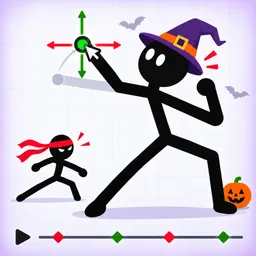
How to Animate at a glance
| Frames | Add frame, then move the characters a little |
| Animations seen | Kick, backflip, hop forward, laugh, repeat, sit down, breathe, run, swing, fly across |
| Camera | Scale in one frame, zoom out in the next; add duration and Ease in |
| Preview | Press Play |
| Saving | Automatic (game page) |
Your first cartoon
- Press Add on a new cartoon and place a hero, a dog or a prop.
- Add a frame. Select the character and choose an animation (kick, run, laugh) or pose it by dragging joints.
- Add a camera move: scale the camera up in frame one, zoom down in frame two, then spread the frames and choose Ease in.
- Press Play. Delete or redo frames that look wrong.
Making a fly across the screen look smooth
The second guide video tried “fly across” as a ready-made animation and found it awkward. It redid it by posing a flying character in frame one, then raising his arms and legs in frame two and moving him higher, which looked like he was flying out of frame. The takeaway from that video is simple: if it looks off, make the pose changes between frames smaller or more exact.
Animation tips
- Change the pose a little in each frame.
- Too fast? Add duration to the frame or delete a frame.
- Try ready-made animations first, then fine-tune the joints.
FAQ
How do you make a cartoon in Roblox Make a Cartoon?
Start a new cartoon, add characters, add frames and move them, then press Play and publish.
What animations can you use?
The videos showed kick, backflip, hop forward, laugh, repeat, sit down, breathe, run, swing and fly across; not every one worked for every character.
Does it save automatically?
Yes, according to the game page.
More Make a Cartoon pages
- Make a Cartoon Controls: Scale, Rotate, Flip and Undo
- Make a Cartoon: How to Get Views and the 100, 1K, 10K and 100K View Badges
- Make a Cartoon beginner guide
- Make a Cartoon badges
- Make a Cartoon codes
- Make a Cartoon wiki: live stats
Sources
Checked Nov 15, 2026. Community wikis are edited by players, so numbers marked “per” one wiki may change after an update.